
 File Imports
File Imports
Because files vary by payroll application and service bureau, during your implementation the files specific to your account will be configured in Assure. If any of your file formats change, or if you need additional files configured, please contact support@rakedigital.com.
There are three categories of files to import:
- Bank files: Bank files contain transactions reported by your bank(s). Once imported, an auto-matching routine will begin and Assure will attempt to match each of the bank transactions to a previously uncleared ledger transaction.
- Ledger files: Ledger files are used to build your client ledgers. Examples of ledger files are ACH (payroll) files, tax payment (EFTPS) files, and wire (EDI) files.
- Client files: Client files are used to build and update your client list. Available fields in the client list are Id, Name, FEIN, and Status.
Under Client Funds Reconciliation on the Navigation Bar, choose Bank Rec. This will bring you to the Import Files page.
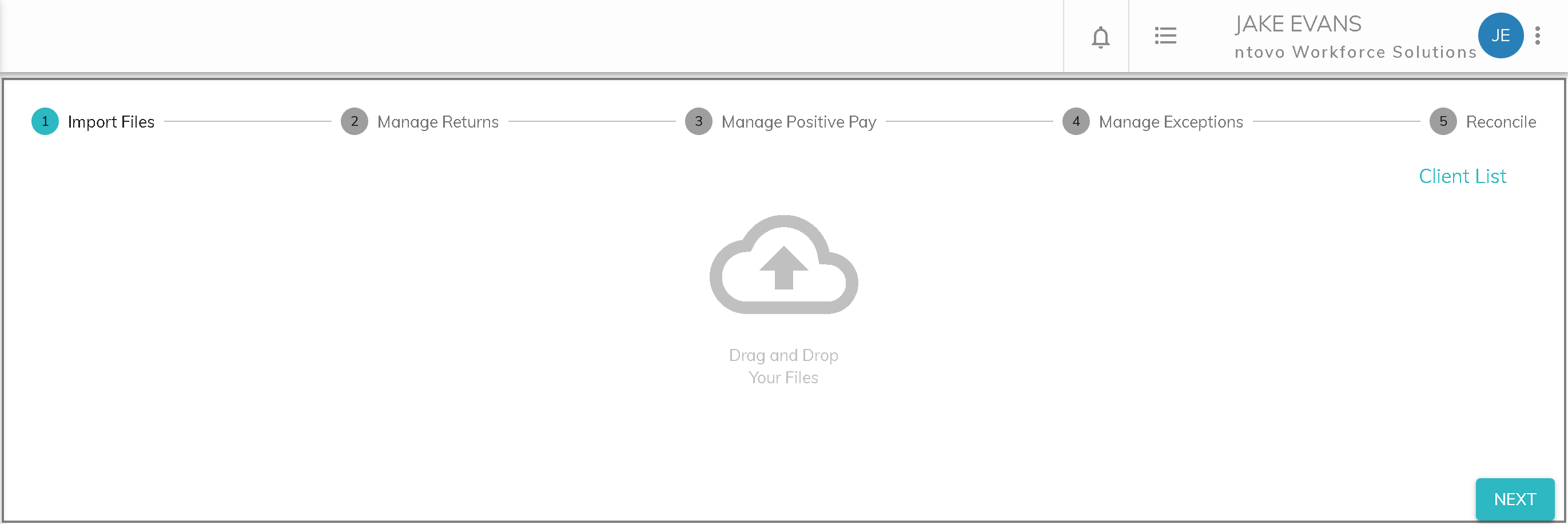 You can either click to select the files or drag and drop your files into the window.
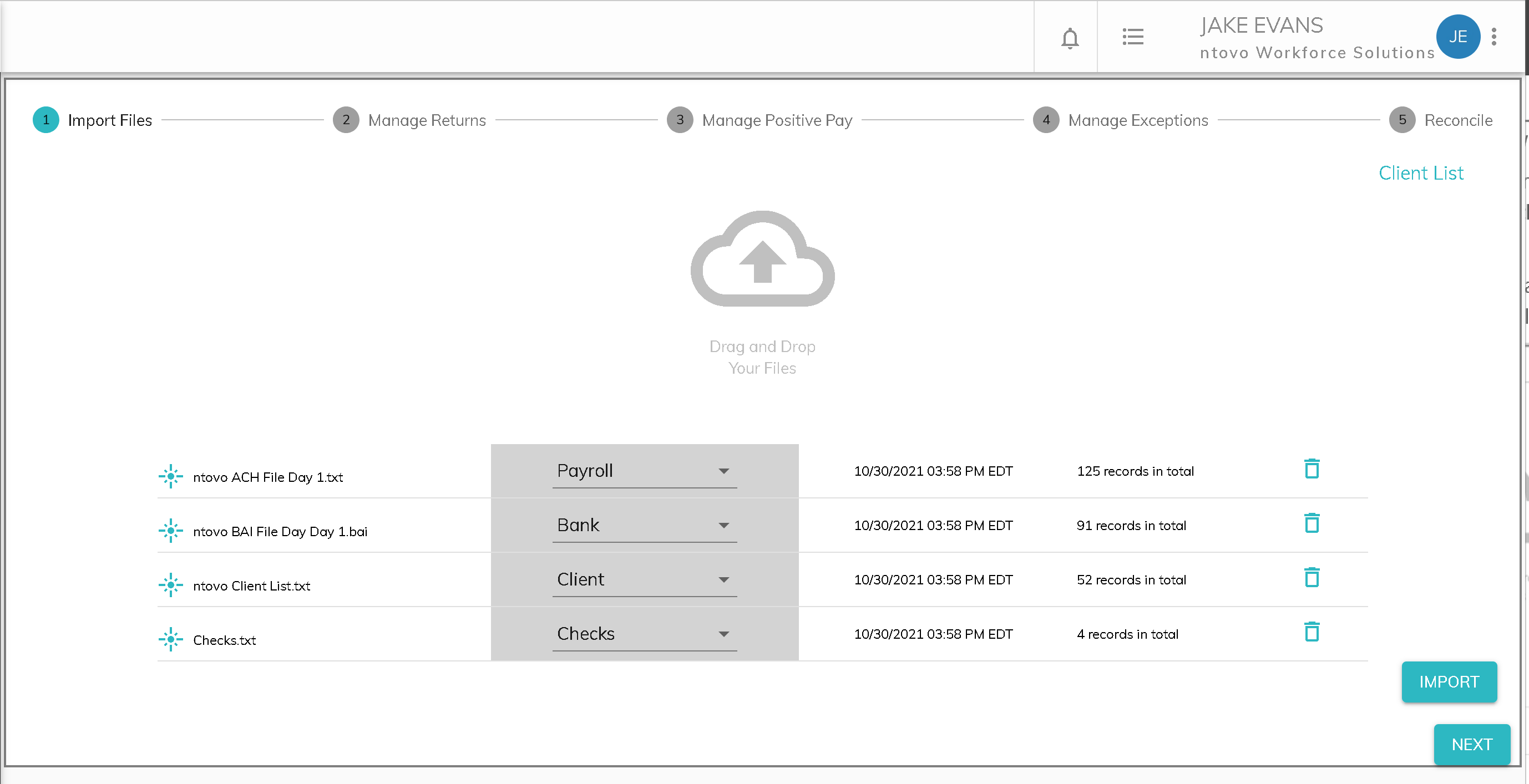
The files to be imported will be listed with the file name, date and time, and record count. Note that the record count includes all of the records in the file. Because Assure only reads the records that it needs from the file, this count will change once the file is imported to reflect the number of records actually imported.
You will need to select a file type if it is not automatically detected. For example, a bank file that has an extension of .bai will automatically be identified as a Bank file. If the file is a more generic file type (e.g. csv or txt), you may need to select the appropriate file type.
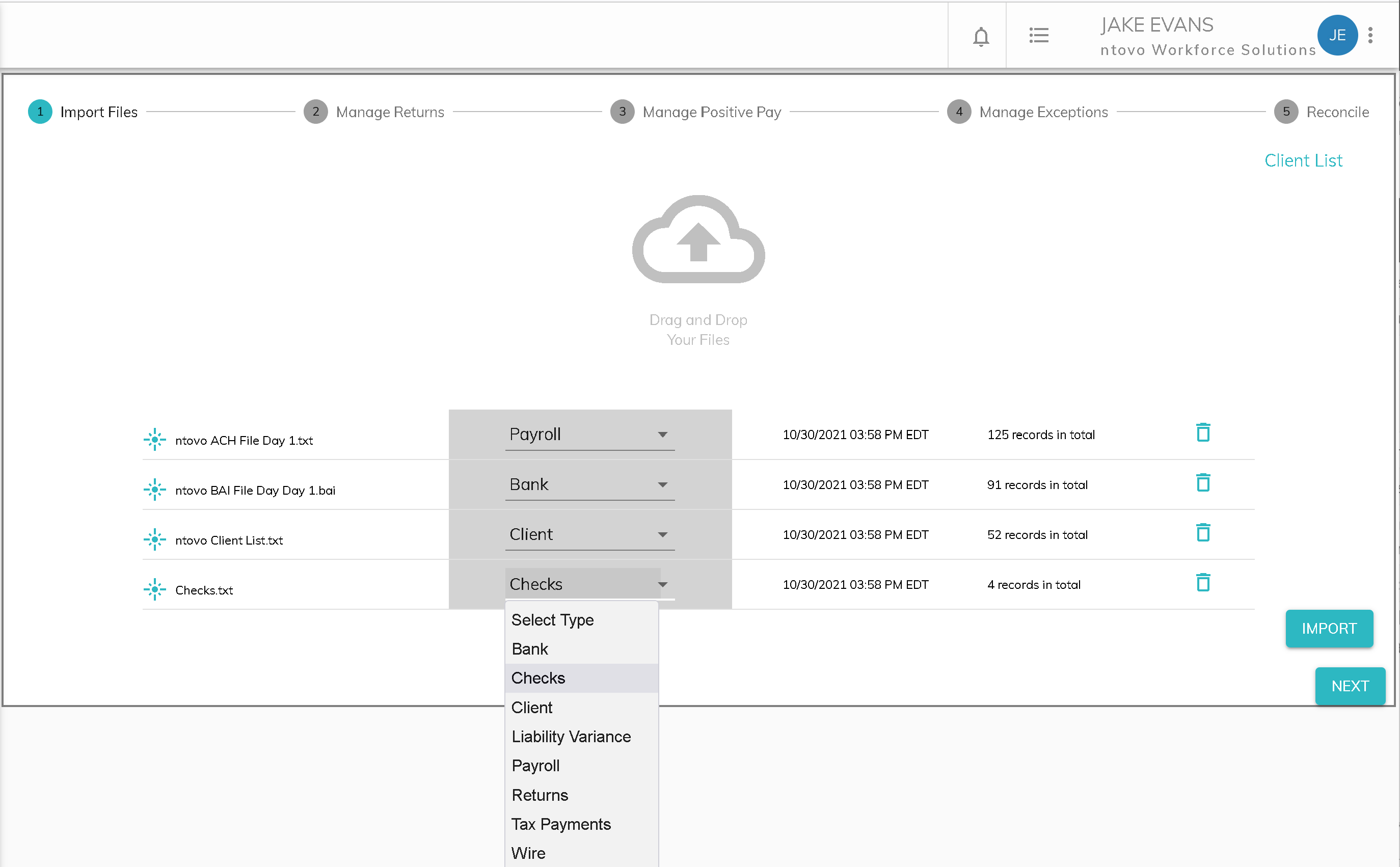
Here are a list of the File Types and a brief description:
| File Type | Common Extensions | Description |
|---|---|---|
| Bank | .bai, csv | List of all transactions debited from or credited to your service bureau bank account. Also called a bank statement. |
| Checks | .csv, .txt | List if checks drawn from your service bureau bank account, often known as Trust, Agency, or Tax checks. |
| Client List | .csv, .txt | Active client list. |
| Liability Variance | .csv | All outstanding liabilities, either by client or by client and tax. |
| Payroll | .ach, .txt | All transactions sent to your bank for electronic processing, typically an ACH file. |
| Returns | .txt, .csv | All ACH returns received by your bank, typically known as an ACH Return file. |
| Tax Payments | .csv, .tst | List of all tax payment transactions. Only upload this information if it is not already included in your payroll/ACH or Checks file. This is common if you are using a third-party software (not your payroll application) to process tax payments. |
| Wire | .edi | List of all wires to and from your service bureau bank account initiated by the service bureau. |
Once you assign file types to all imported files, the import button appears at the bottom right corner of the screen. Once you click the import button, you will see a status bar next to each file. A green bar indicates that the file import was successful and number of records imported will be displayed.
Note that files always import in the following order:
- Client files
- Ledger files
- Bank file
When importing files that add transactions to the ledger (e.g. payroll or tax payment files), a yellow bar indicates that the file was imported but that the company id could not be found in the client list for one or more records in the file. There are two possible results in this scenario.
- Client Added: If the file is configured to look for a company id in a ledger file, the company id will be added to the client list if it is not found in the existing client list. A message will be displayed indicating that the client id was added. From the warning, you can click the Edit icon and update the Client record.
- Not Imported: If the ledger file does not contain a company id, Assure can look for a FEIN or company name in a file to cross-reference the client list and identify the company id. If the company id cannot be determined based on the name or FEIN in the file, the record will be skipped and a warning presented. From the warning, you can click the Add icon and manually add the transaction.
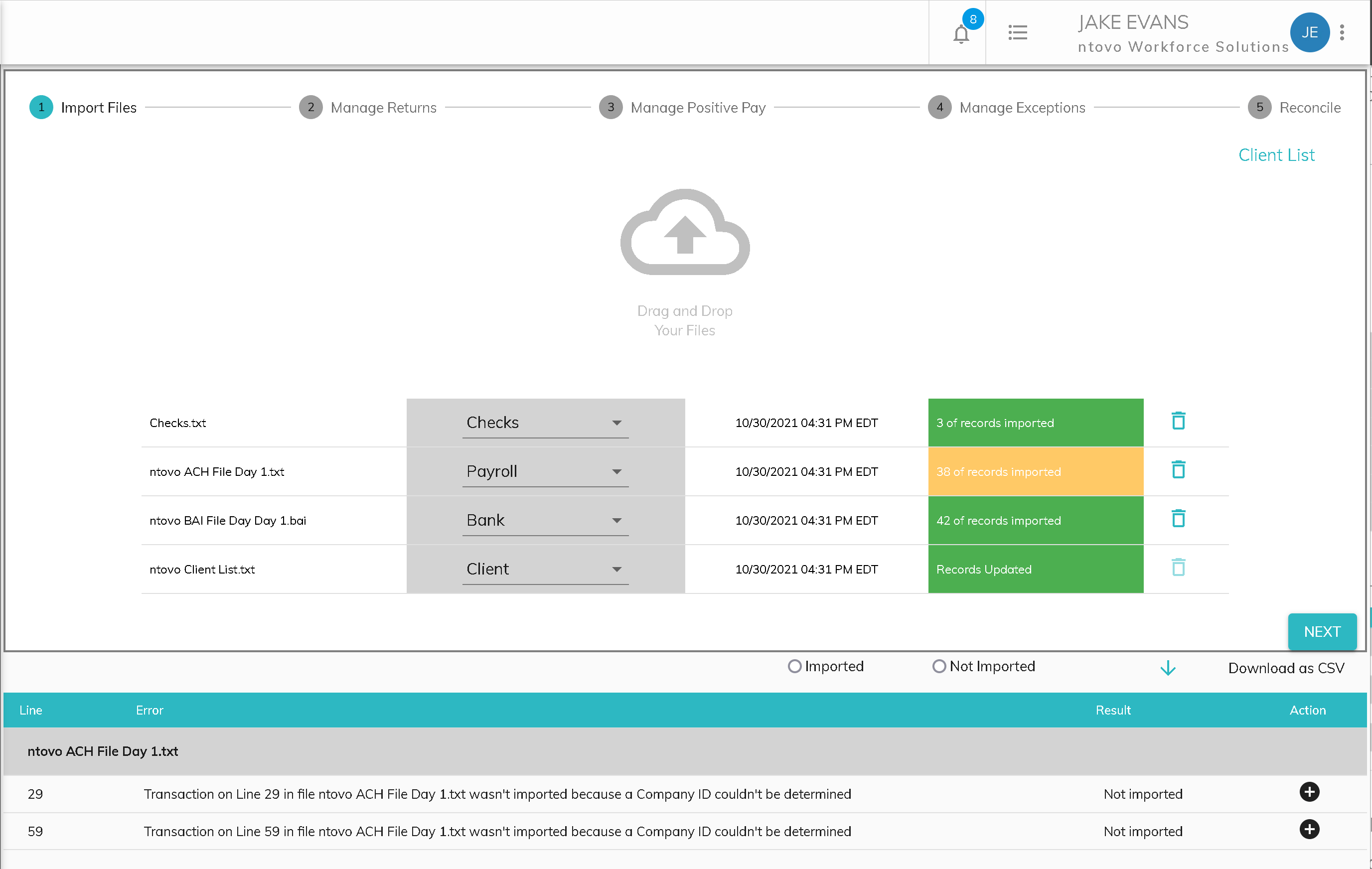
Warnings can be downloaded to a .csv file by clicking the download button above the warning messages.
If a file import shows a red bar, the import has failed. If the import fails, you can delete the errored import, correct your file, and import again. The other files that were successfully imported do not need to be imported again.

© RAKE Digital Company, 2022 • Updated: 12/09/21
Comment or report problem with topic