
 Card Attributes
Card Attributes
Cards have many features to promote collaboration and troubleshooting, such as commenting, file attachments, and prioritization. We will walk through all of the card attributes in this article.
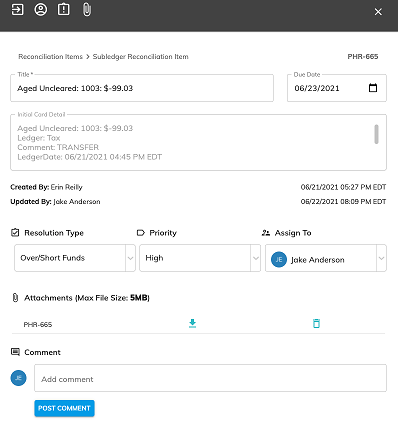
Card Header Icons
There are icons at the top of the card that allow you to take certain steps.

Workflow Steps
Move a card across the workflow steps (columns) by dragging and dropping the card on the kanban board or by using the workflow icon as described below.
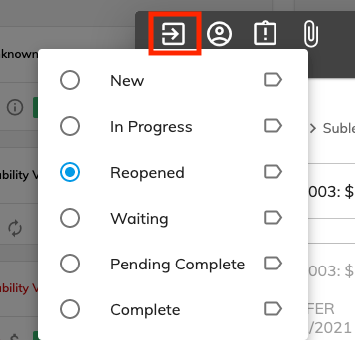 To move the card to a new column using the card header icons, click a radio button to select the desired column and then close the card to move it to the selected column.
Assign To
Assign a card to a team member by using the Assign To drop-down or by using the Assign To icon as described below.
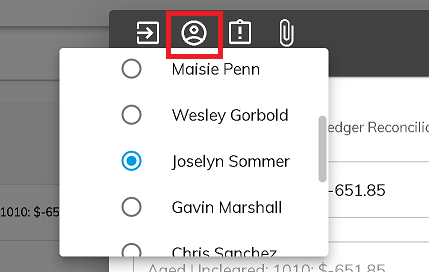
To assign the card to a team member using the card header icons, click a radio button to select the desired team member and then close the card to assign it to the selected team member.
Priority
Set a card priority by using the Priority drop-down or by using the Priority icon as described below.
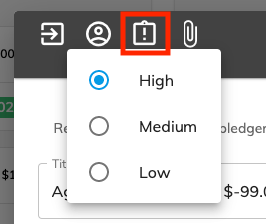
To set a priority to a card using the card header icons, click a radio button to select the desired priority and then close the card to set the priority to the card.
Attachments
Attach a document to a card by using the Attachment section of the card or by using the Attachment icon as shown below.

To add an attachment using the card header icons, click the attachment icon and select a file to attach a file to the card (Max file size: 5MB).
Card Type
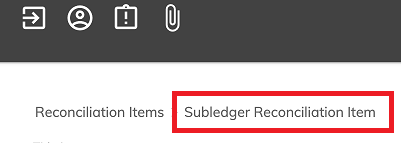
Cards are created by Assure or by a User. Cards generated by Assure are labeled "Subledger Reconciliation Item" or "Ledger Reconciliation Item". Cards created by a User are labeled "User Reconciliation item".
Card Identifier
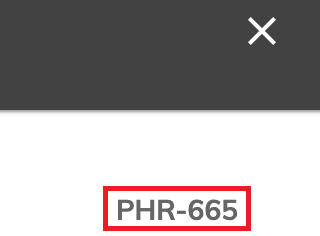
Every card is assigned a system generated id.
Card Title
The card title contains three elements. Reconciling item type: company identifier: dollar amount.

Due Date
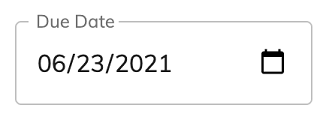
Cards can be assigned a due date.
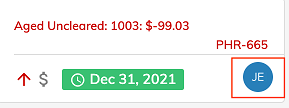
If a card contains a due date in the future, the due date is displayed in a green box when viewing the kanban board.
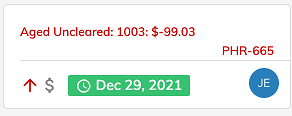
If a card contains a due date in the past, the due date is displayed in a red box when viewing the kanban board.
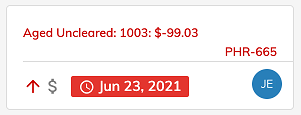
Initial Card Detail
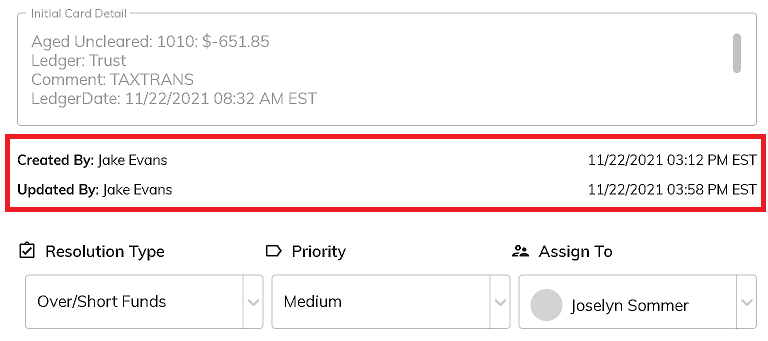
Card details are displayed. The information contained in the details varies depending on the card type.

Date Stamp
The detailed card view included information about who created the card, including the created date as well as the last user to modify the card, including the date and time stamp it was last modified.
Resolution Type
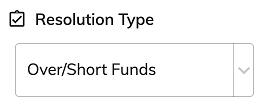
Resolution type is a card attribute to identify what needs to be done to clear up the item. Because reconciling items result from comparing records in the payroll system(s) to funds held in the ledger, items are typically cleared by updating the payroll system(s) or moving money to/from the customer. Once the item is researched to try to determine the steps necessary to resolve the item, a Resolution Type can be assigned. Available resolution types are:
- System Update. This means that something needs to be updated in the payroll system(s).
- Over/Short Funds: This means that funds need to be moved to/from the customer.
- Need More Info: This means that you didn't have enough information to determine a resolution for the item.
- Other: This means that you determined that the resolution doesn't fall into any of the other categories available.
- Not Assigned: This is the default category when a card is created for Subledger Reconciliation Items with a dollar amount of below -$0.99 or over $0.99 and any User Reconciliation Item.
- Penny Card: This is the default category for any Subledger Reconciliation Item with a dollar amount between -$0.99 and $0.99.
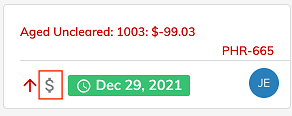
Resolution types also display as an icon on the card summary view on the kanban board.
Priority
Set a card priority by using the Priority icon in the Card Header icons or by using the Priority dropdown near the middle of the card. Priorities are:
- High
- Medium
- Low
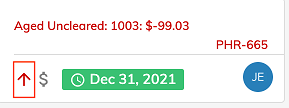
High priority cards display with red text and a red up arrow on the card summary view on the kanban board.
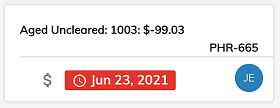
Medium priority cards display with black text and no arrow on the card summary view on the kanban board.
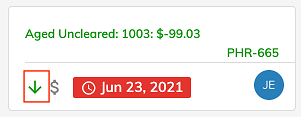
Low priority cards display with green text and a down arrow on the card summary view on the kanban board.
Assign To
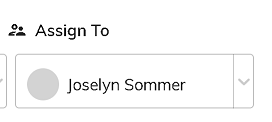
Assign a card to a user by either using the Assignment icon in the Card Header Icons or using the Assign To dropdown near the center of the card.
There is also an icon in the card summary view on the kanban board indicating who the card is assigned to. Newly created Subledger Reconciliation Items are Unassigned by default.
File Attachments
Attach documents to the card either by using the Attachment icon in the Card Header Icon section or by attachments section near the bottom of the card (Max File Size: 5MB). Attachments can also be downloaded or deleted here.

Comments
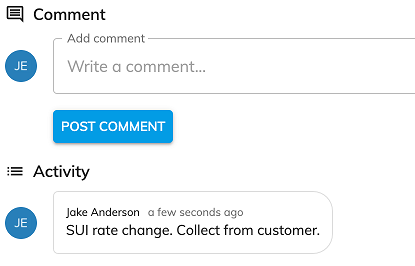
Comments are a helpful tool in research and collaboration. Be sure to click Post Comment before closing the card. Comments are displayed in reverse chronological order.
© RAKE Digital Company, 2022 • Updated: 12/31/21
Comment or report problem with topic