
 Manage Returns
Manage Returns
If you subscribe to the ACH Returns module, you can use the Manage Returns screen to track and manage ACH Returns. Contact Support@RAKEdigital.com for more information. Once configured, Manage Returns will be a new step on your workflow.
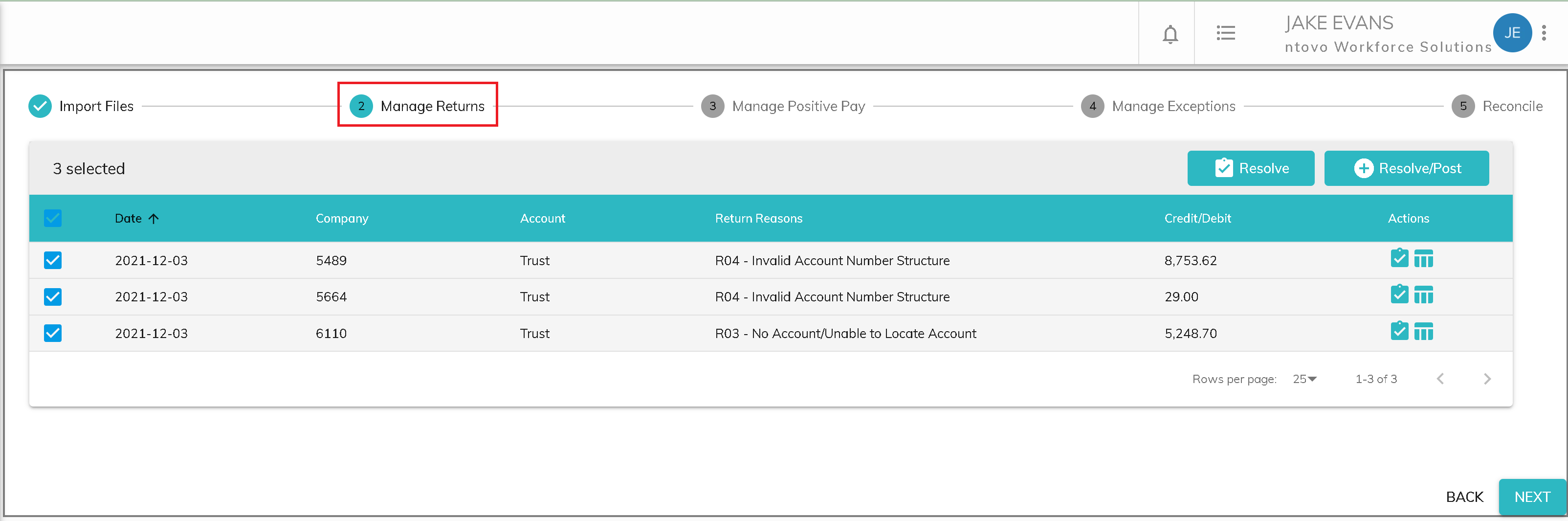
Transactions imported from your Returns file are automatically added to the ledger, tagged as Imported Returns, and added to the kanban board. Open (not completed) kanban cards with a type of Imported Returns are also listed on the Manage Returns screen. Cards can be accessed and edited directly from Manage Returns.
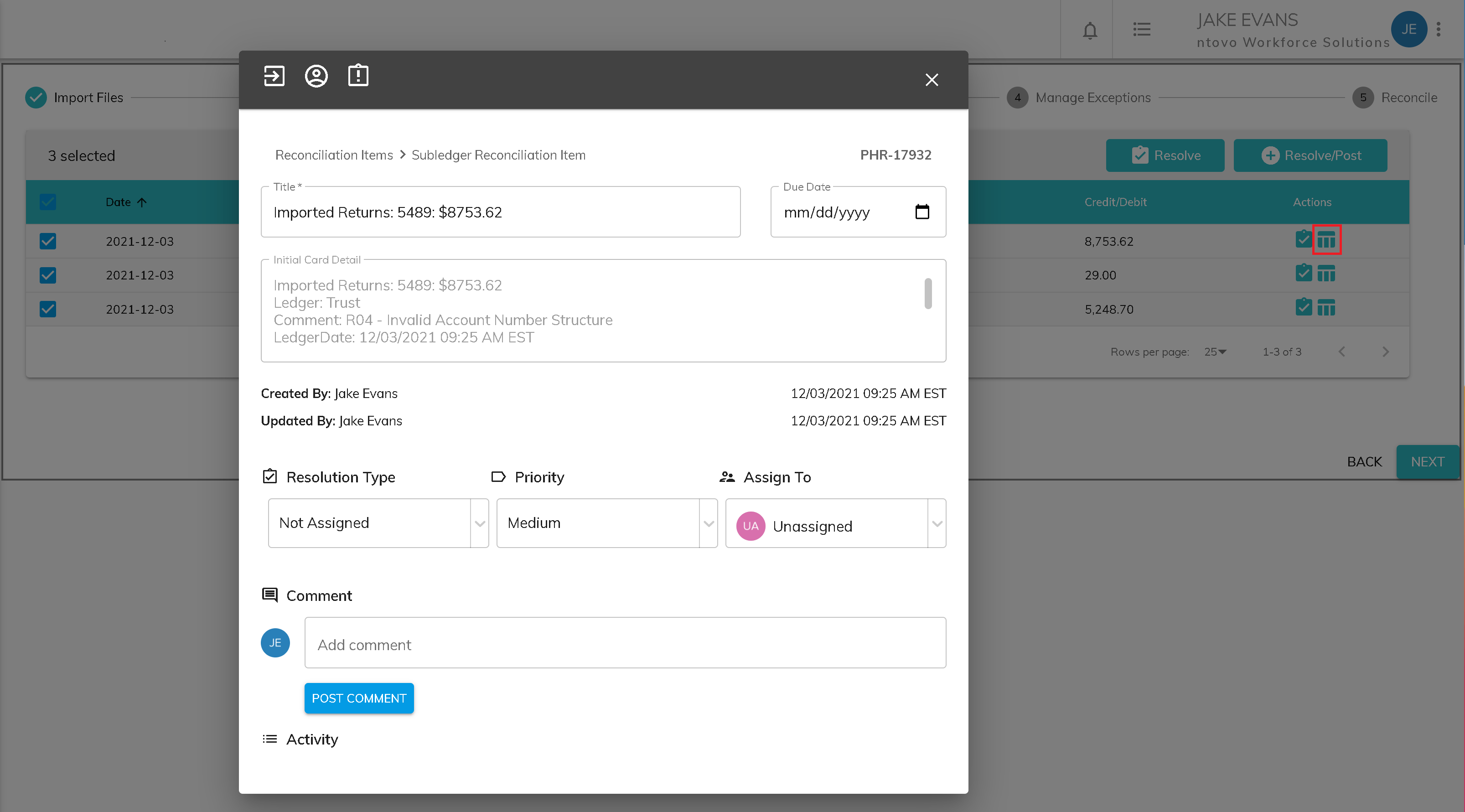
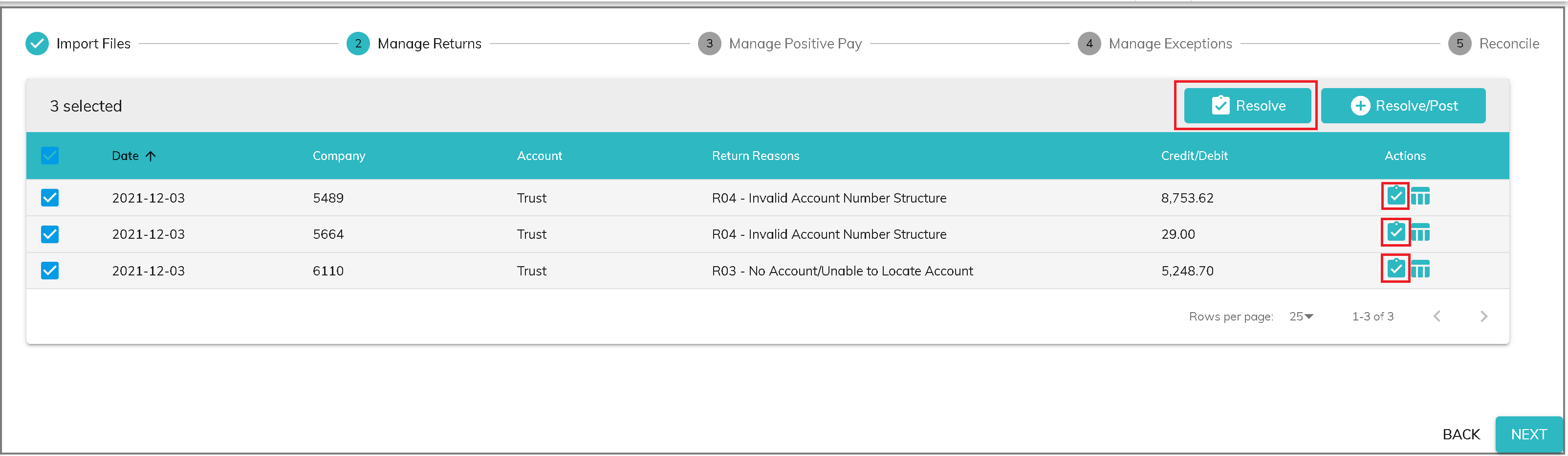
From the Manage Returns screen, you have two options:
- Resolve (individually or in bulk): Clicking the resolve button moves the card(s) to the Completed column on the kanban board.
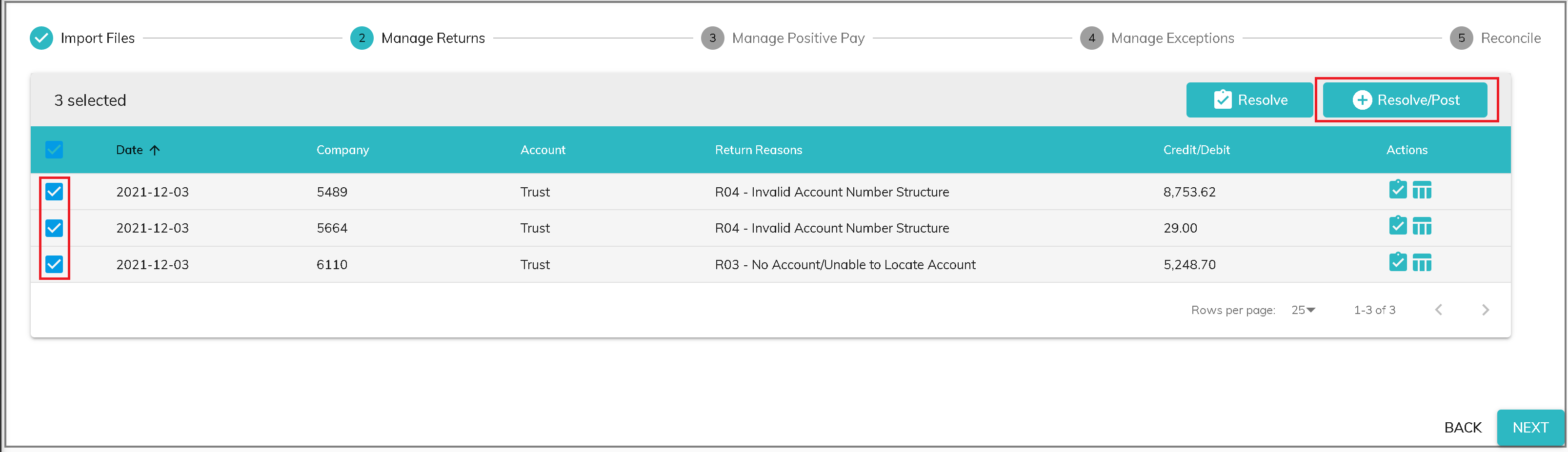
- Resolve/Post (individually or in bulk): Clicking the Resolve/Post button moves the card(s) to the completed column on the kanban board and posts reversing entries to the ledger to clear the resolution against. For example, you have a credit return in the amount of $8,753.62 that was imported as a returned item in a Returns file. When the Returns file is imported, the transaction is posted to the ledger and used to clear the return when it is posted by the bank. If you click Resolve/Post on that item, an additional entry will be posted to the ledger in the amount of -$8,753.62 and will be used to clear the refund of the return when it is posted by the bank. Only use this option if you will not also be importing the correction of the returned transaction in an ACH file. Select the transactions to be resolved and posted and click the Resolve/Post button in the header row.
© RAKE Digital Company, 2022 • Updated: 12/09/21
Comment or report problem with topic