
 Ledger Reconciliation
Ledger Reconciliation
The next step in your best-in-class reconciliation program is to perform a ledger reconciliation where you compare the adjusted bank balance to the sum of the individual ledger balances. This reconciliation ensures that all prior bank reconciliations are intact and ledgers are accurate.
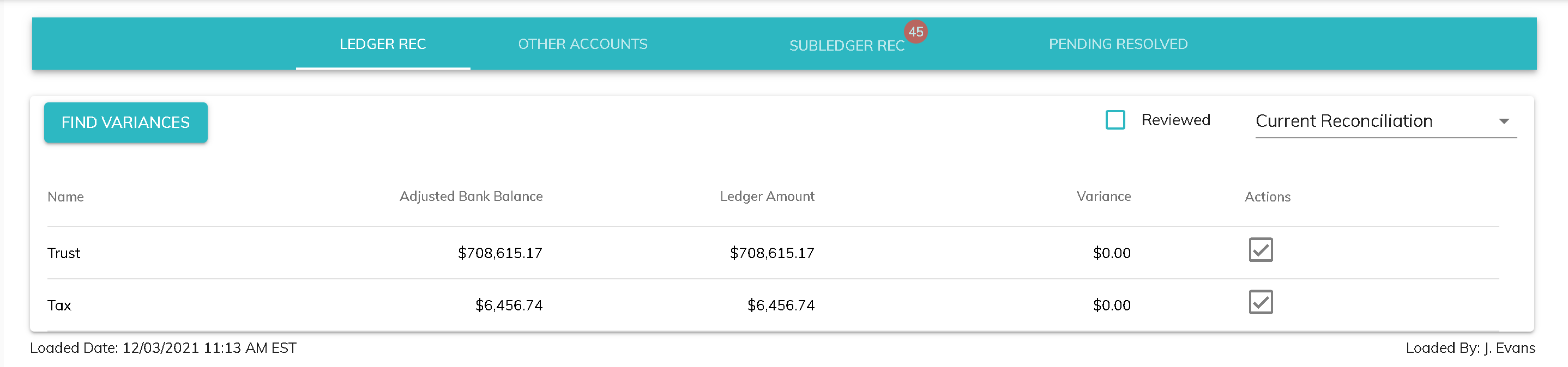
Navigate to the Workflow tab on your Navigation Bar. This will bring you to the Ledger Rec tab. Click "Find Variances" to update the ledger reconciliation tab with the most recent bank and ledger data.
Following is an explanation of columns:
- Name: The ledger names (e.g. Trust, Tax).
- Adjusted Bank Balance: Most recent closing bank balance plus or minus the net of uncleared transactions
- Ledger Amount: The sum of all of your client ledger balances for each ledger
- Variance: The difference between the Adjusted Bank Balance and Ledger Amount
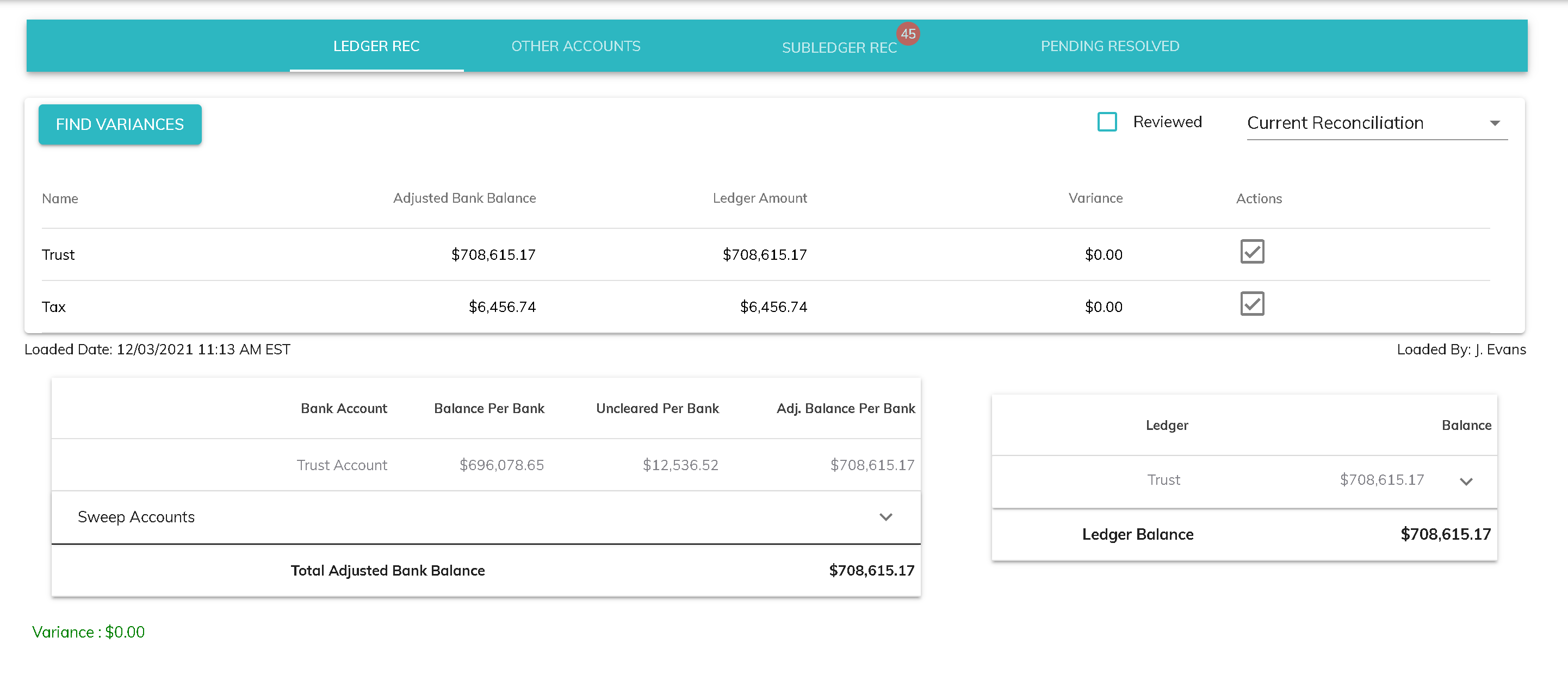
You can see more details by clicking on a row. The details section lists balances and uncleared item transactions for individual bank accounts associated with the ledger as well as Sweep accounts, if applicable. You will also see the sum of the ledger balance and any sweep accounts, if applicable.
Prior Reconciliations
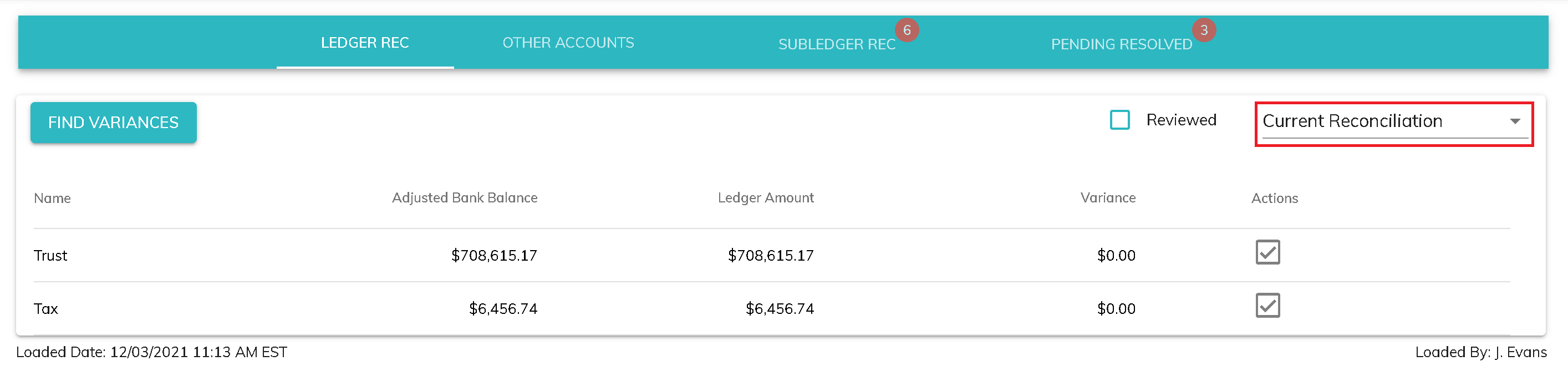
You can view prior ledger reconciliations by clicking on the Current Reconciliation drop down box.
Reviewed
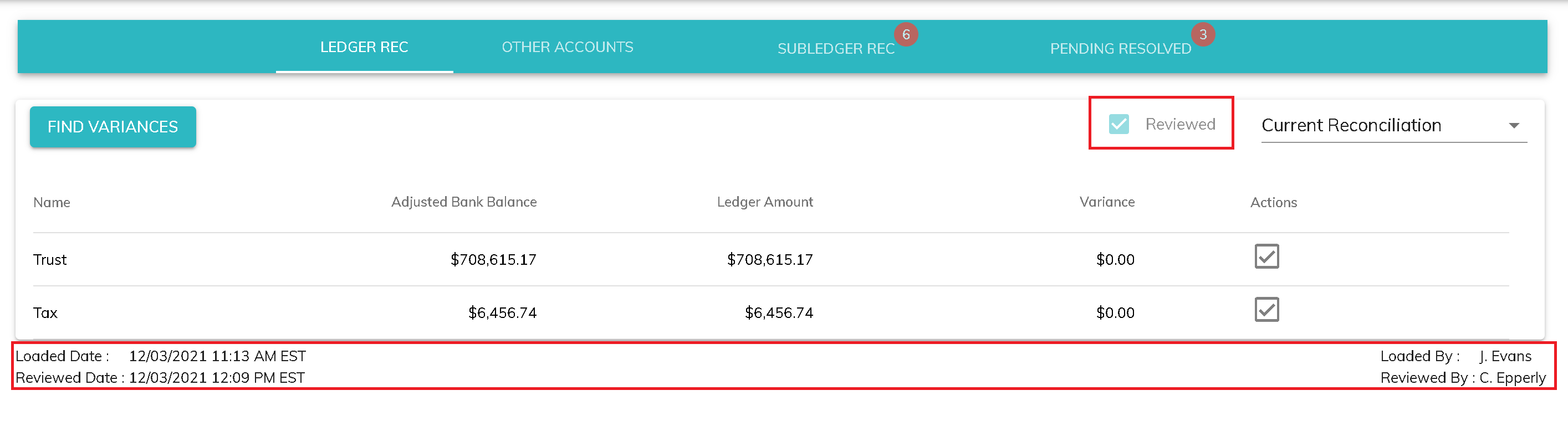
You can use the Reviewed checkbox to record when the data was reviewed by a second user. Every time a user clicks the Find Variances button, a record is shown on the screen of which user clicked the button as well as the date and time. If you have a control that states that a second user reviews the information, that user can click the Reviewed checkbox and the Reviewed information will also be recorded on the screen.
© RAKE Digital Company, 2022 • Updated: 12/03/21
Comment or report problem with topic