
 Client List
Client List
Assure maintains a client list that contains Client Ids, Client Names, Federal Identification Numbers, and Client Status. It is important to keep this list up to date to ensure that auto-matching of bank to ledger transactions can occur.
You can access the client list from the Import Files tab of the Bank Reconciliation workflow or from the Reconciliation Tasks menu.
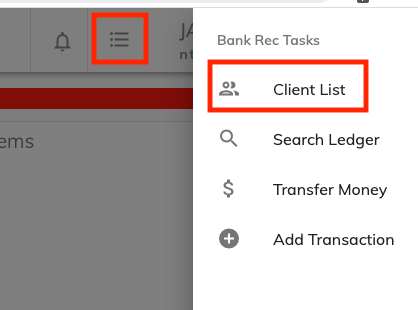
Clicking on Client List will bring you to a screen showing a list of all clients.
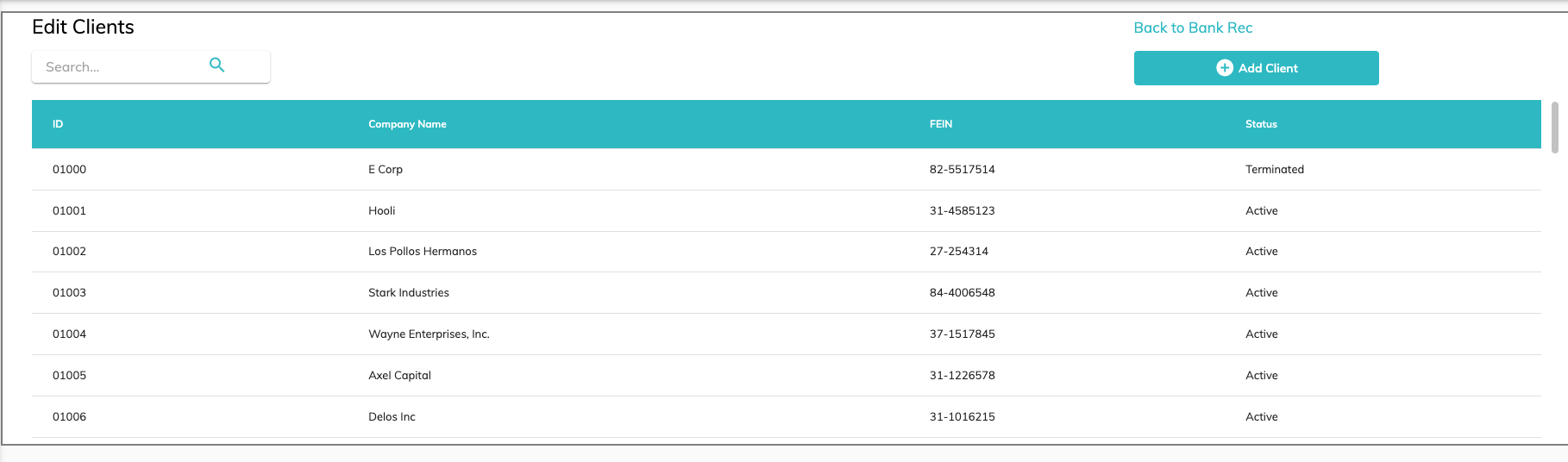
Companies are added to the client list in one of three ways.
File Import
To import a client list, the file format first needs to be configured. Contact support@rakedigital.com to assist with the configuration if you have a new file or if your client file format changes.
On the Import Files (Step 1) of the Bank Reconciliation workflow, you can either click to select the files or drag and drop your files into the window.
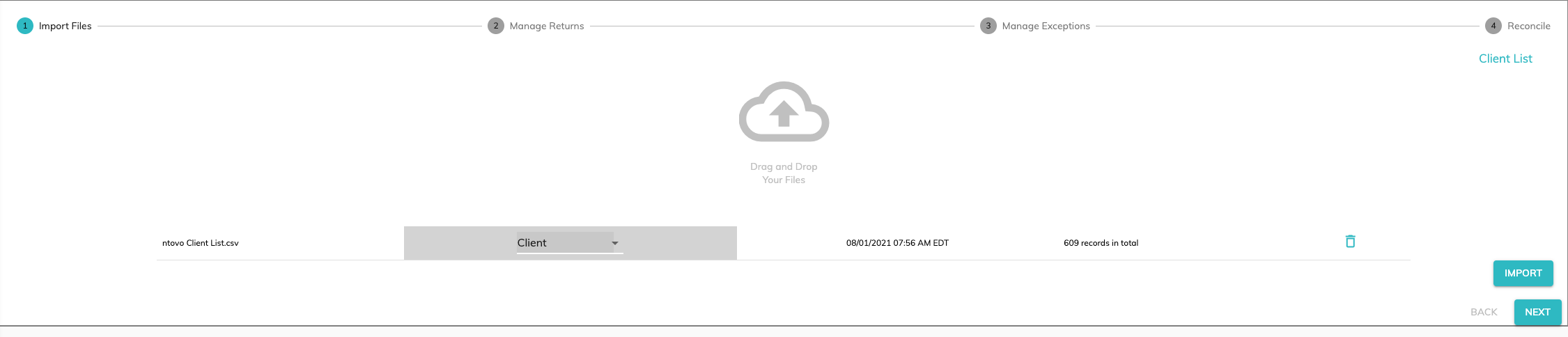
If Assure does not automatically detect the file type, choose Client from the dropdown. Click import. New companies will be added and any changes to existing clients will be detected and the list will be updated.
User Update
Navigate to the Client List. To add a new client, click the Add Client button.
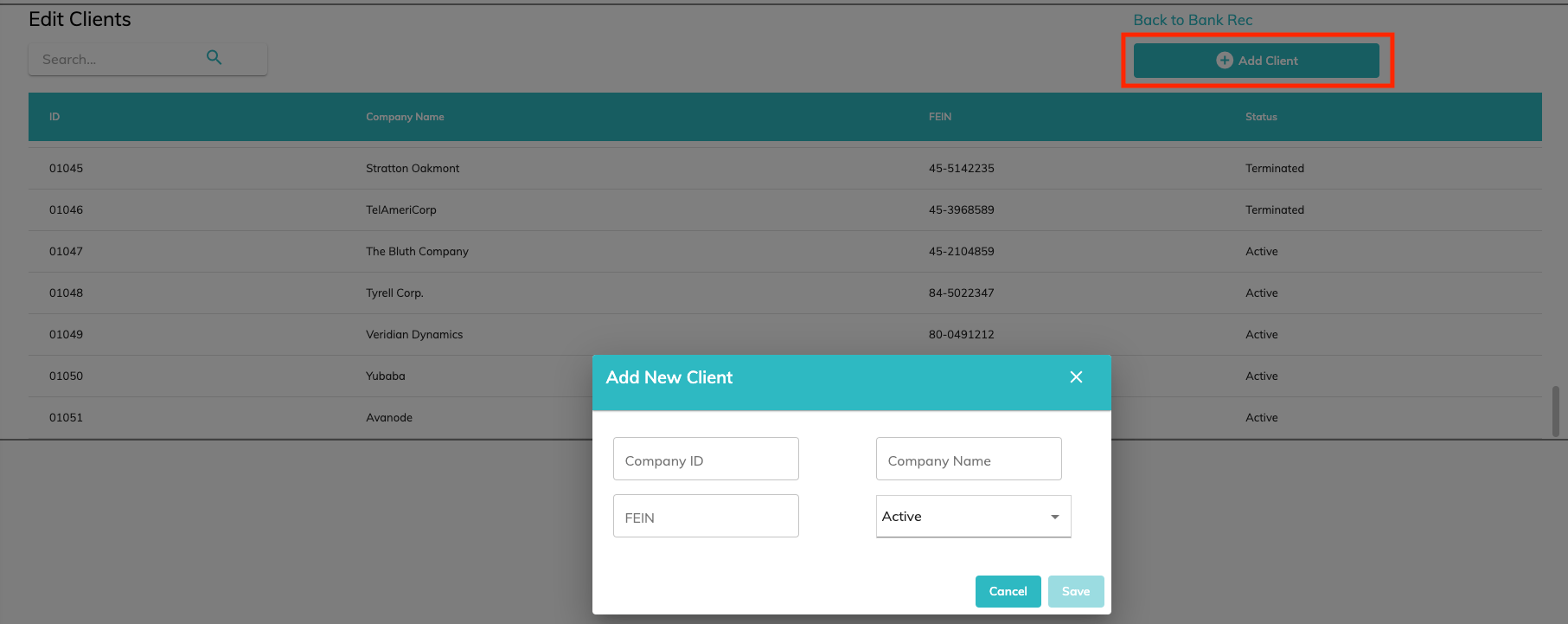
Fill in the appropriate fields and then Save.
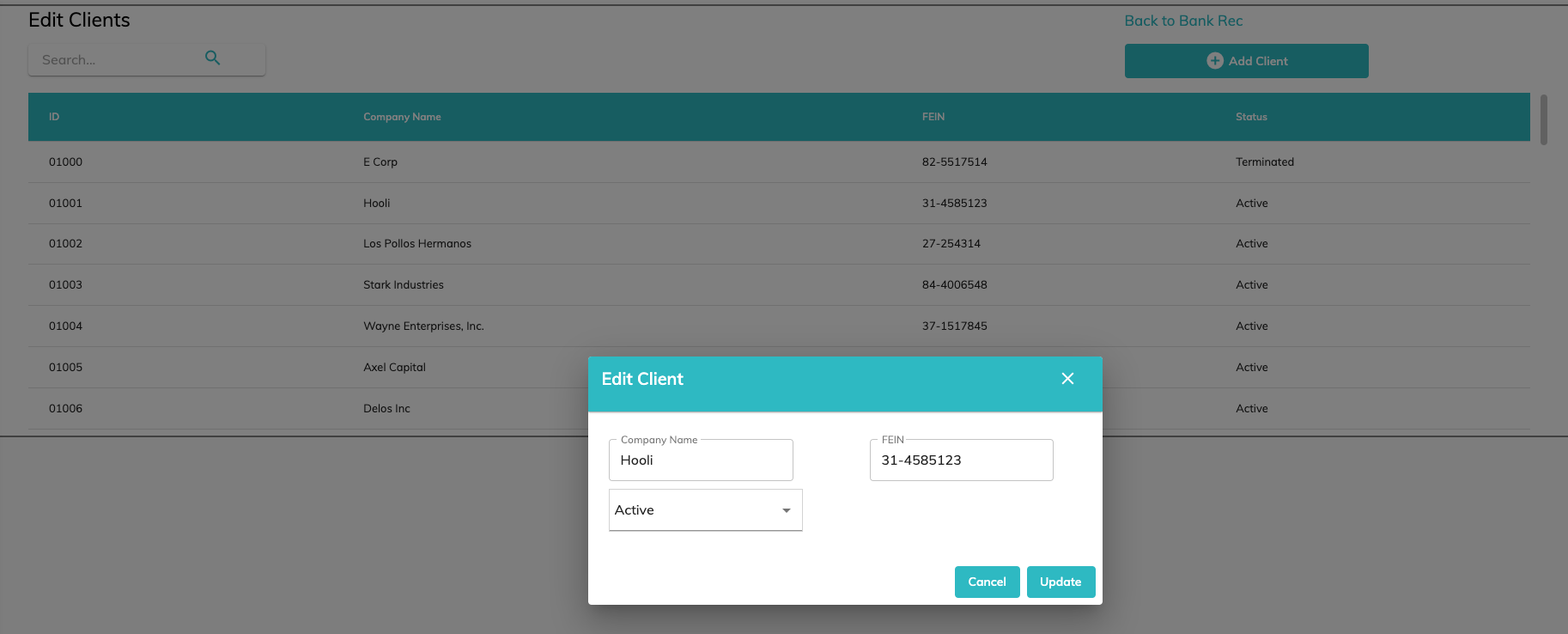
You can also update the name, FEIN, and status of existing clients by clicking on the row on the client in the client list, modifying the information, and clicking Update.
System Updates During File Import
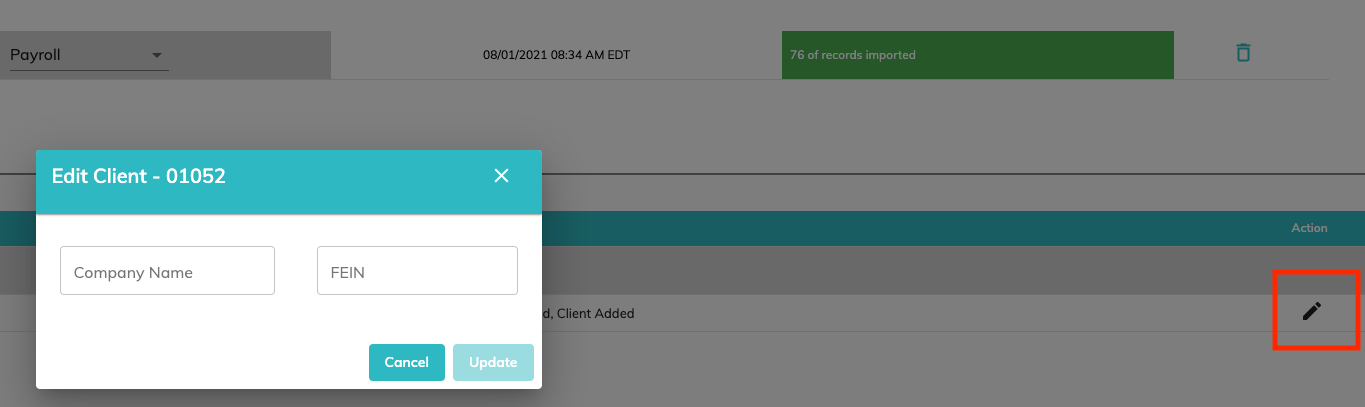
When importing files that add transactions to the ledger (e.g. payroll or tax payment files), a yellow bar indicates that the file was imported but that the company id could not be found in the client list for one or more records in the file. If the file is configured to look for a company id, rather than FEIN or company name, in a ledger file, the company id will be added to the client list if it is not found in the existing client list. A message will be displayed indicating that the client id was added.

From this screen, you can click add information associated with the newly added client id.
© RAKE Digital Company, 2022 • Updated: 12/03/21
Comment or report problem with topic