
 User Administration
User Administration
To create or modify users, click on the people icon on the Organization List.

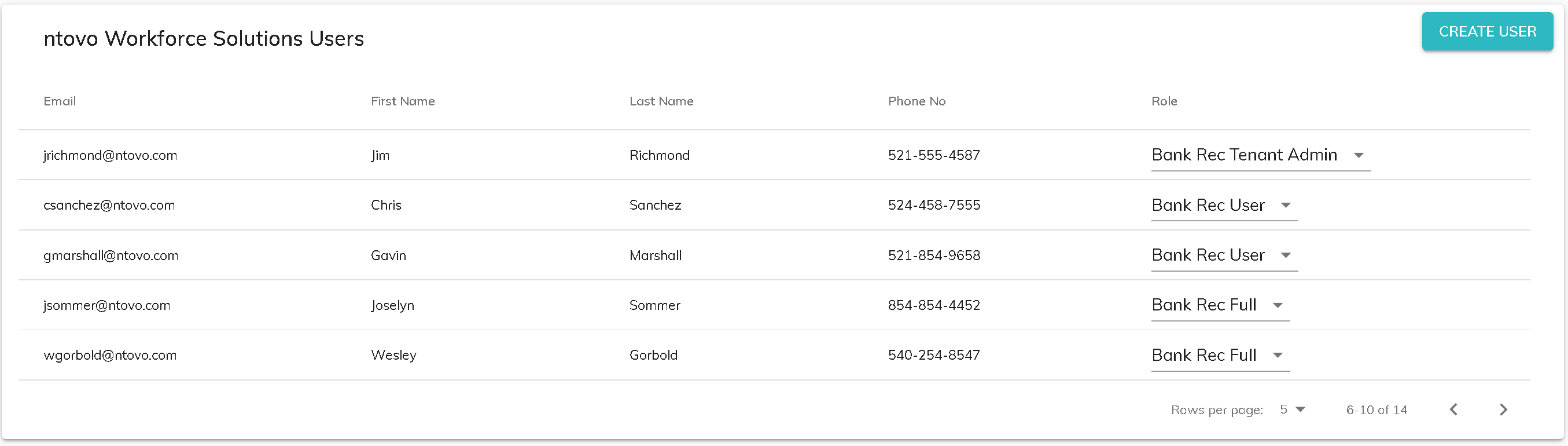
This will bring you to a list of users. From here you can edit or add a user.
Create User
To add a new user, click the Create User button.
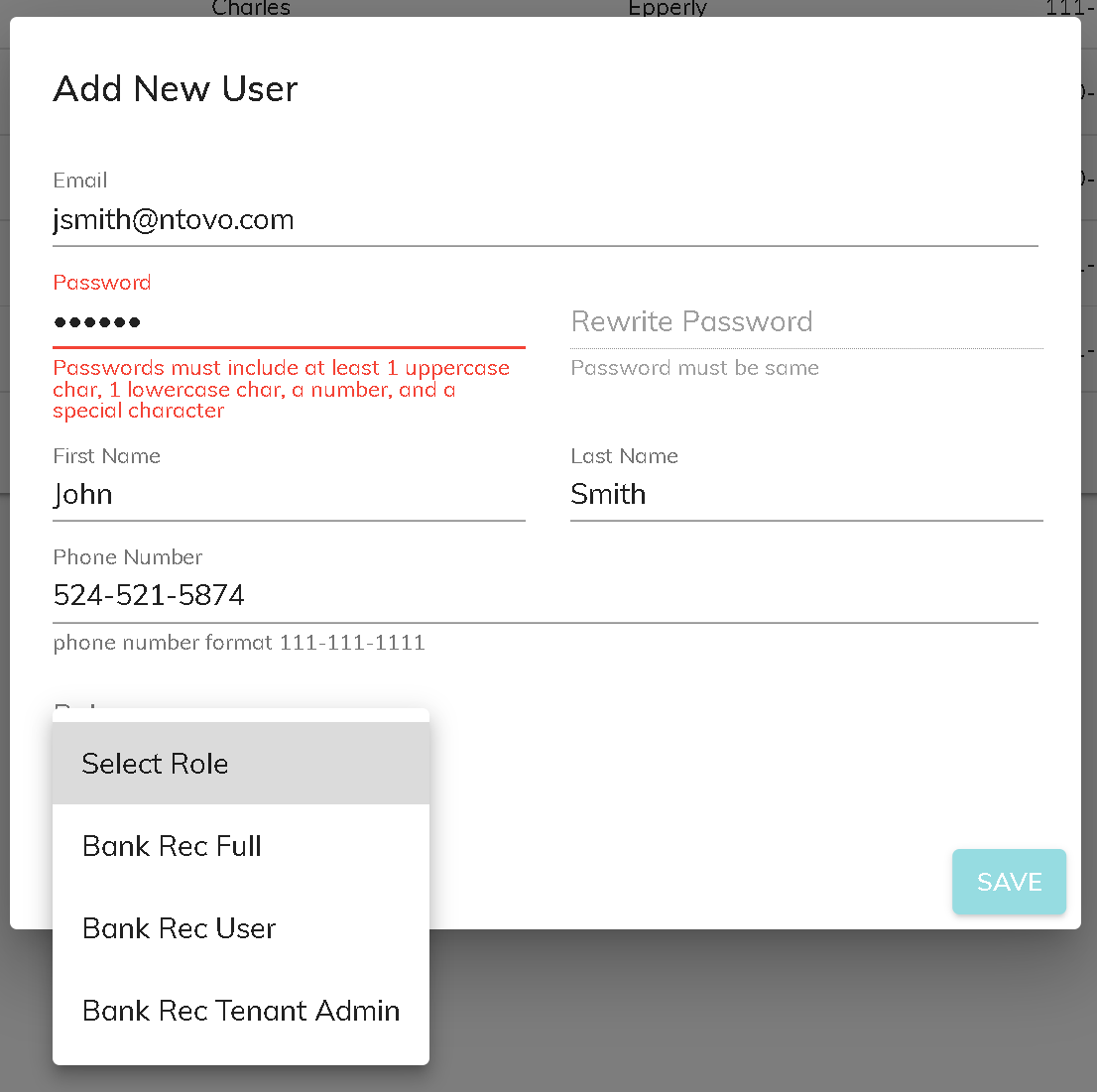
Fill in the fields and click save to add a new user.
Password Complexity Requirements
- Password must be at least 8 characters
- Passords must include:
- 1 uppercase character
- 1 lowercase character
- 1 number
- 1 special character
User Roles
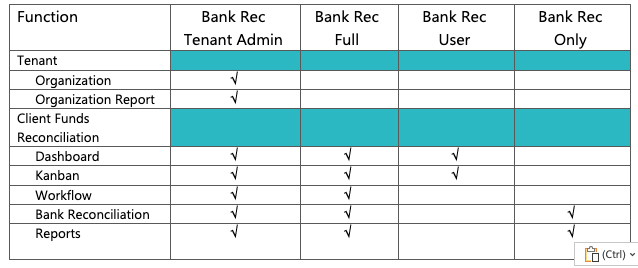
There are currently four user roles.
Bank Rec Tenant Admin
This role has access to all menus, reports, and tabs, including organization and user administration.
Bank Rec Full
This role has access to all menus, reports, and tabs except for organizaiton and user administration.
Bank Rec User
This role has access to the Dashboard and kanban board only.
Bank Rec Only
This role has access to the Bank Reconciliation and Reports tabs only.
Modify a User
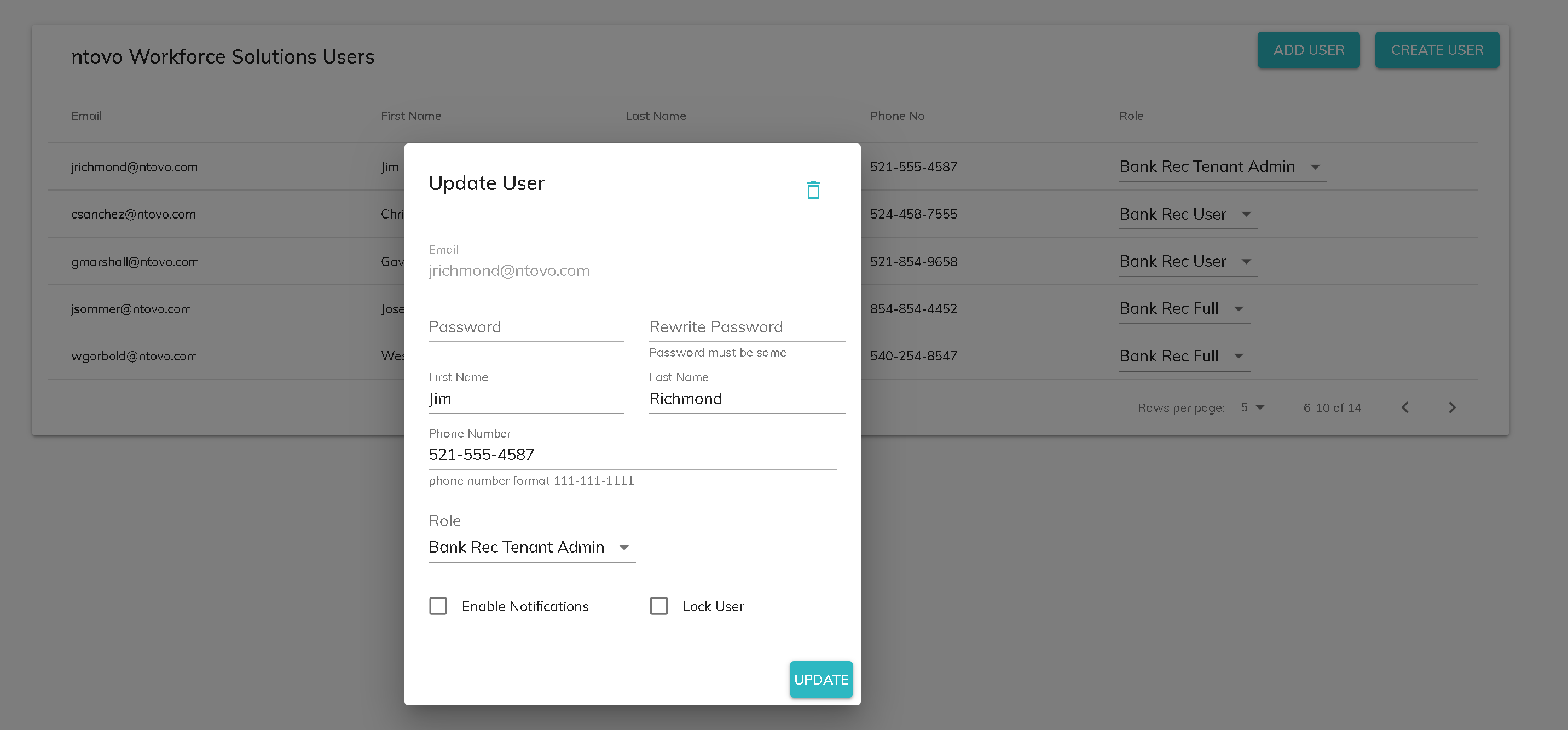
Click on a row to modify a user.
Remove a User
A user can be deleted by clicking on the trash can icon at the top right.
Modify Demographics
You can update a user's email address, name, phone number and role by changing the information and clicking Update.
Reset Password
You can reset a user's password by updating it on this screen. The user can then change their password once they log in.
Enable Notifications
Notifications can be sent to users who has kanban cards that are past due. To turn on these notifications, the first step is to check the Enable Notifications box on the Organization. You will also need to enable notifications per user.
Lock user
A user is automatically locked after 10 failed login attempts. An administrator can unlock the user by unchecking the Lock User box.
© RAKE Digital Company, 2022 • Updated: 12/23/21
Comment or report problem with topic