
 Searching the Kanban Board
Searching the Kanban Board
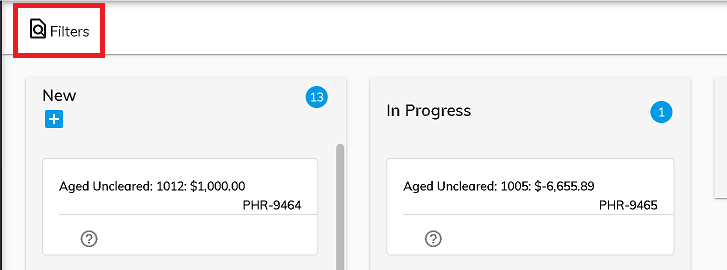
To search fields on the kanban board, click the Filters icon at the top of the screen.
Search Box
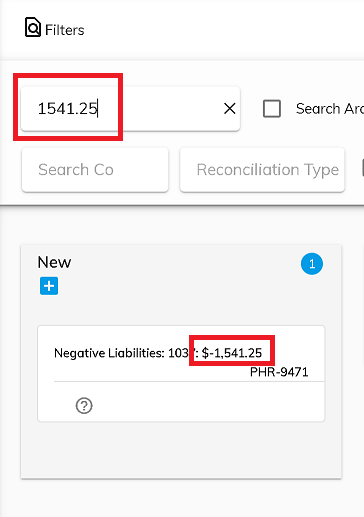
The first search box will search any text in the cards that have not been archived.
Penny Card Filter
The Hide Subledger Penny Cards filter is on by default. Penny Cards have an amount of between -$0.99 and $0.99. You can see these cards by clicking the checkbox on the filter. There could be a significant number of penny cards that have accumulated and showing these cards could cause the screen to be slower to load.

Search by Member or Resolution Type
Select the Member or Resolution drop-down boxes to search by those fields.

Sort Cards
Cards on the kanban board can be sorted by created date, modified date, amount, company, or rec type. Select the appropriate field from the sort drop down. Click the three bars to the right of the drop down box to sort. Click the three bars again to reverse the sort order.

Download Cards
Download active (not completed) cards to a .csv file by clicking the download button.

Search by Company, Reconciliation Type, or Bank Account
Click the down arrow to see drop down lists. Select the item(s) you would like to filter. Once items are selected, the drop down changes to a check mark to indicate that a filter is applied. Click the check mark to hide the drop down list. Click on 'Clear Filters' to remove the filters.

Filter by Past Due
Due dates can be assigned to cards on the kanban board. Card Attributes. You can filter the kanban board to only show cards with a due date in the past.

Filter by Card Type
Cards can either be created by Assure or by a user. Card Attributes Filter by card type by clicking the Select Card Type box and choosing the card type(s) you would like to show.

Clear Filters
To clear any filters that have been previously set, click on Clear Filters.

© RAKE Digital Company, 2022 • Updated: 12/31/21
Comment or report problem with topic