
 Search Ledger
Search Ledger
The Search Ledger screen is used to research ledger transactions.
Filters
Filters can be used in conjunction with each other. Choose the filters you would like to apply and click the Apply Filters box to search for the transactions(s). Reset the filters by clicking Clear Filters.

Header Filters
The top section of the screen shows filter options outside of the column headers displayed.
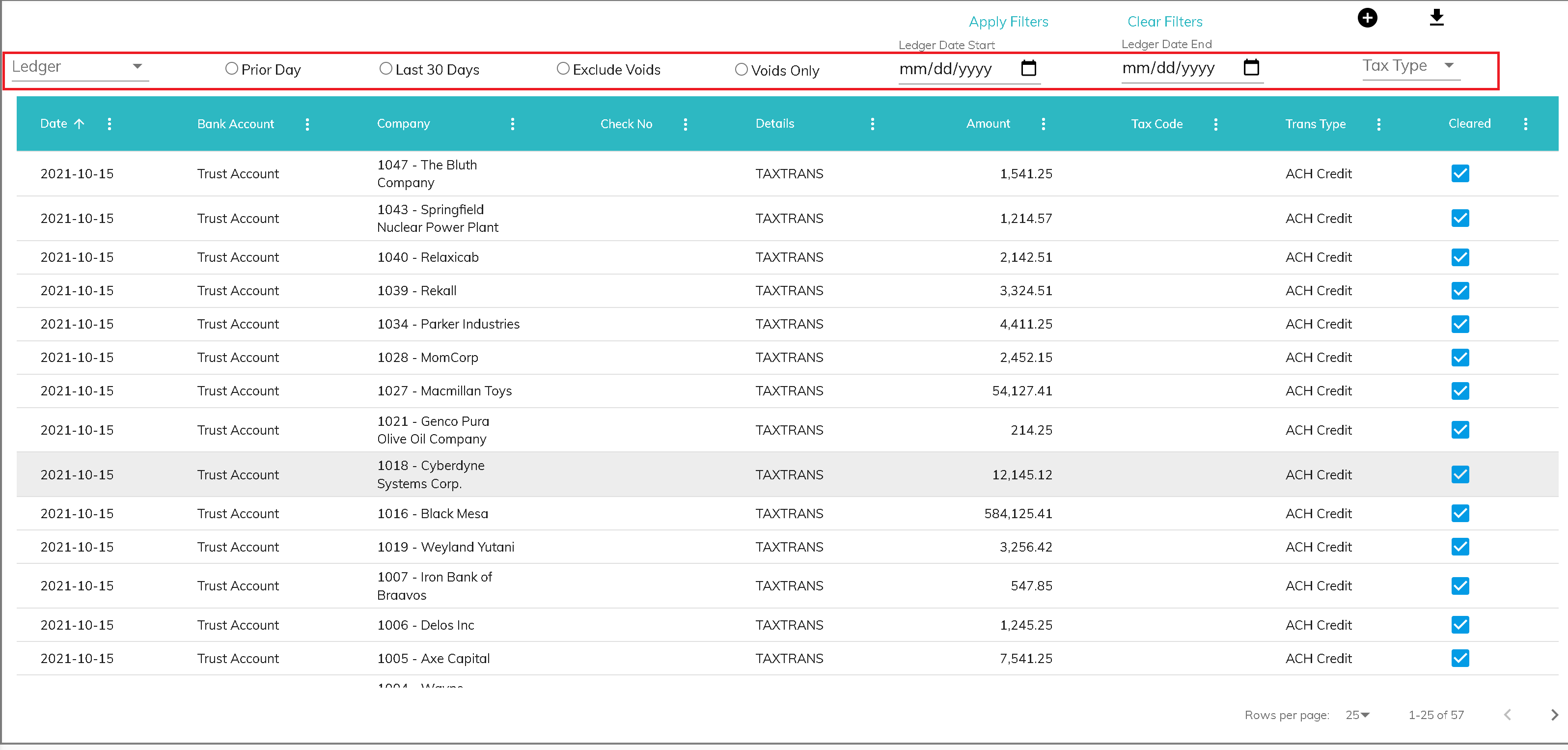
- Ledger: The ledger associated with the transaction (e.g. Billing, Direct Deposit, Trust, or Tax)
- Prior Day: Shows transactions with a transaction date of the prior day
- Last 30 Days: Shows transactions with transaction dates in the prior 30 days
- Exclude Voids: Shows transactions that have been marked as voided
- Voids Only: Shows transactions that have not been marked as voided
- Ledger Start and End Dates: Shows transactions created in a specific date range
- Tax Type: Shows transactions with specified tax types
Column Filters
Each of the column headers can be set as filters as well. To choose a filter, click the 3 dots beside the header name.

- Date: Shows transactions with transaction dates in a specific date range
- Bank Account: Shows transactions for one or more bank accounts
- Company: Shows transactions for one or more companies
- Check No: Shows transactions with a specific check number or only checks
- Details: Shows transactions containing specific text
- Amount: Shows transactions with a specific dollar amount or dollar range
- Tax Code: Shows transactions with one or more specific tax codes
- Trans Type: Shows transactions with one or more specific transaction types
- Cleared: Shows transactions that are either cleared or outstanding, depending on filter box checked
Once you have set all of the desired filter selections, click Apply Filters to show the transactions for that combination of filters.
Filter Indicators
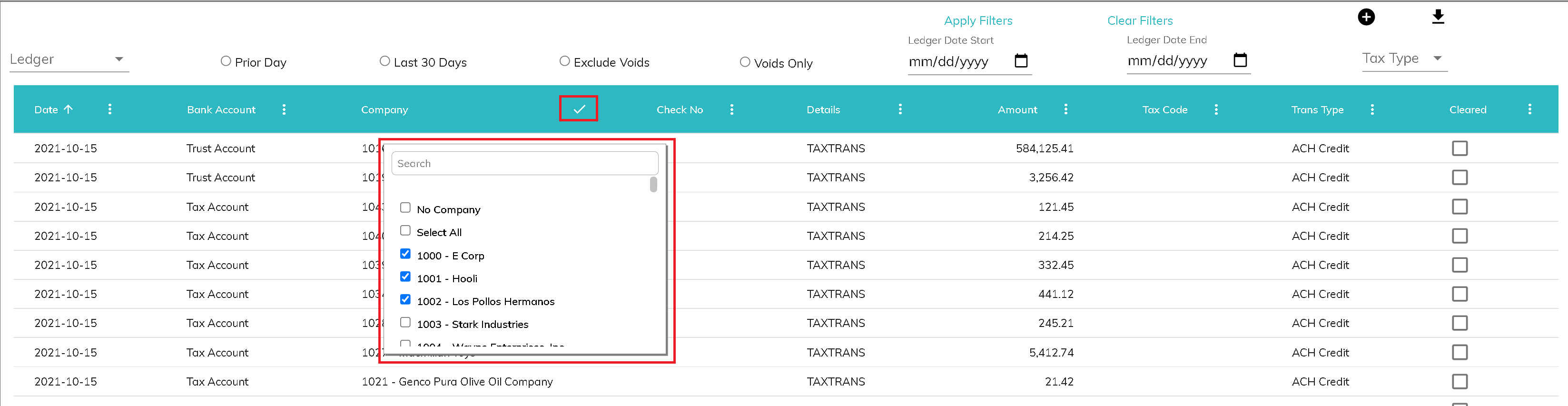
Once a column header filter is applied, the three dots change to a check mark. If you would like to hide the filter box, click on the check mark.
Adding a Transaction
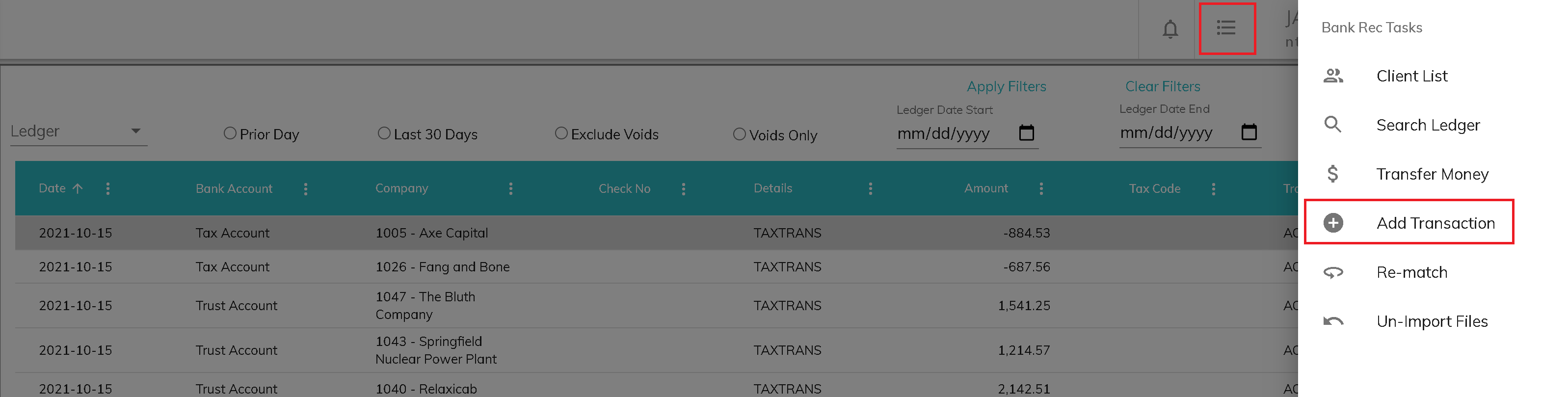
To add a ledger transaction from the Search Ledger screen, click the plus bottom near the top right of the screen. Fill in the information related to the transaction and click Save. Required fields are company, transaction date, details, amount, and bank account. See Add Transaction.
Downloading Transactions
To download filtered from the selected filters to a CSV file, click the download icon near the top right of the screen.

Editing a Transaction
To edit a ledger transaction, click on the row containing the transaction. There are different options for editing, depending on the status of the transaction.
- Cleared Transactions: You can edit the company, details, transaction type, tax code, and reconciling item (See Add Transaction) if a transaction has already cleared.
- Outstanding Transactions: You can edit the company, transaction date, details, amount, check number, bank account, transaction type, tax type, tax code, reconciling item (See Add Transaction), and void status if a transaction has not been reconciled in bank statement.
Voiding a Transaction
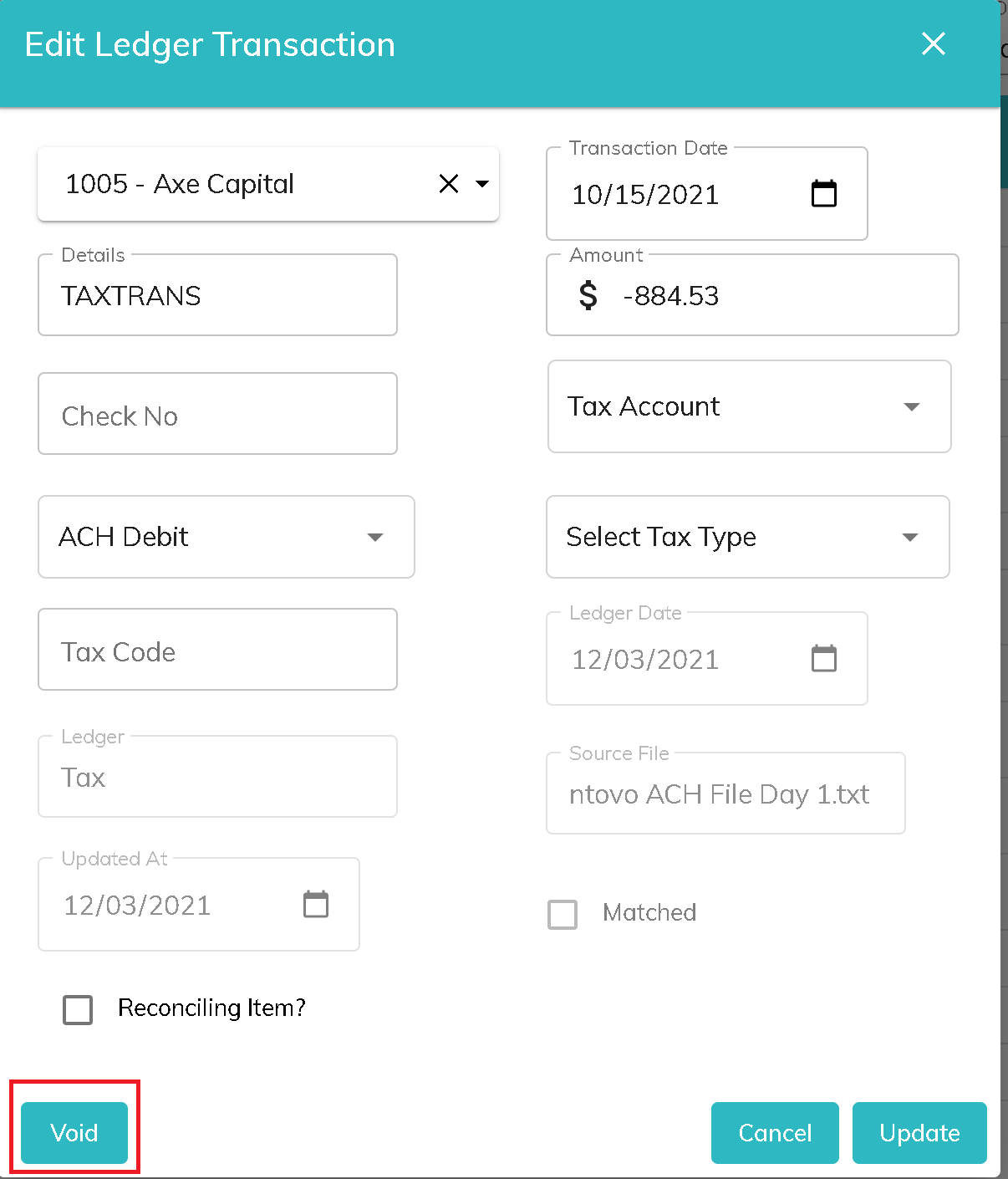
If a transaction has not been reconciled in a bank statement, it can be voided using the Edit Ledger screen. From Search Ledger, filter to find the transaction. Click on the row containing the transaction you would like to void. Click Void and confirm that you would like to void the transaction. Voided transactions can be identified on the Search Ledger screen as transactions that are greyed out on the Search Ledger screen.
To unvoid a previously voided transaction, click into the transaction to edit it, click unvoid, then confirm that you would like to unvoid the transaction.
© RAKE Digital Company, 2022 • Updated: 12/09/21
Comment or report problem with topic